Quick summary
HubSpot ticket automation, the short answer: Starter automates by ticket status: status changes from email activity, plus tasks, notifications and property edits when a ticket enters a status. Professional ($90 per seat per month billed annually, plus $1,500 onboarding) adds help desk routing, SLA goals and ticket-based workflows, which is where most real automation lives.
Set up first: routing, status from email, SLA goals, chasing quiet tickets, escalating urgent tickets nobody answered, and the bug handoff to engineering.
Where it stops: HubSpot has no built-in Linear action, so the handoff needs an app that creates the Linear issue and writes its status back to the ticket.
HubSpot Ticket Automation at a Glance
| Automation | Where it lives | Plan needed |
|---|---|---|
| Change ticket status when a rep emails or the customer replies | Pipeline automation | Service Hub Starter |
| Create a task, notify the team, or edit a property when a ticket enters a status | Pipeline automation | Starter |
| Assign tickets by round robin, load balanced or random distribution | Help desk routing | Professional, with a Service Seat |
| Time to first reply, next reply and close goals | Help desk SLAs | Professional (Enterprise to combine properties) |
| Delays, branches, customer emails, owner rotation | Ticket-based workflows | Professional |
| Webhooks and custom code | Ticket-based workflows | Data Hub Professional |
| Create a Linear issue from a ticket | Workflow action from an app | Professional (any plan from the ticket card) |
Three questions tell you what you can automate today:
Answer these first
- Which Service Hub plan are you on? Starter automates by status. Routing, SLAs and workflows start at Professional.
- Do you work tickets in help desk or in the conversations inbox? HubSpot says accounts created after April 1, 2024 cannot set SLAs in the inbox and should use help desk.
- Where do bugs go? If engineering works in Linear, plan the handoff now, because no built-in action reaches it.
In this article
1.
2.
3.
4.
5.
6.
7.
8.
9.
The Three Places HubSpot Ticket Automation Lives
Most guides say "build a workflow" for everything. In HubSpot, ticket automation is split across three tools, and which ones you have depends on your plan.
Pipeline automation
Rules attached to each status in a ticket pipeline. When a ticket enters the status, HubSpot runs the rule. It also covers status changes driven by email. This is the only ticket automation on Starter.
Help desk automation
Routing rules and SLA goals in the help desk settings. They decide who gets a new ticket and how fast it must be answered. Professional and Enterprise.
Ticket-based workflows
The full workflows tool, enrolled on tickets: triggers, delays, if/then branches, emails to customers, owner rotation and actions from connected apps. Professional and Enterprise.
A ticket pipeline is the set of statuses a ticket moves through. HubSpot's default support pipeline has four: New, Waiting on contact, Waiting on us, and Closed. Every automation below hangs off those statuses or the properties on the ticket, so get the pipeline right before you automate it. Our HubSpot ticketing system guide covers pipelines, statuses and properties in detail.
How to Automate Tickets in HubSpot on Starter
Service Hub Starter is $20 per seat per month on monthly billing, and HubSpot's pricing page also shows a $7 rate on annual billing. It does not include workflows, but its pipeline automation covers more than most teams use.
Status from email. HubSpot can change a ticket's status when a user emails the contact from the ticket, or when the contact replies on the ticket's email thread. Set "Waiting on contact" when the rep replies and "Waiting on us" when the customer answers, and the queue sorts itself.
Rules when a ticket enters a status. Each status can:
Create and assign a task
For example, "Reply within 4 hours" for the ticket owner when a ticket enters Waiting on us.
Send an internal email notification
To users who have notifications turned on, when a ticket reaches a status such as Escalated.
Edit a property
On the ticket or an associated record. For example, set a date property when a ticket enters Closed.
That covers simple notifications and follow-up tasks. What Starter cannot do is wait, branch, email the customer, or assign an owner automatically. If your team spends time each morning deciding who takes which ticket, you have outgrown Starter.
What Professional Adds: Routing, SLAs and Workflows
Automatic Ticket Routing
By default, HubSpot leaves incoming help desk tickets unassigned. Routing rules fix that per channel, such as a team email address, a form or chat. A rule can send tickets to specific users or teams, to a team without setting an owner, to the contact owner, or to an assignment workflow. Distribution is load balanced (fewest open tickets first), round robin, or random, and by default only agents marked available receive tickets. HubSpot can also route by agent skills. Setting routing rules needs a Service Seat.
HubSpot SLA Goals
SLA goals live under Help desk automation in the help desk settings and need Super Admin permissions to set. You set targets for time to first reply, time to next reply and time to close, for all tickets or by priority, team, source or pipeline. Goals can run at all times or only during set hours, and a "due soon" setting flags tickets before they breach. Basing one goal on a combination of properties, including custom properties, needs Enterprise.
Pick targets your team can actually hit. Our guide to support SLA management shows how to set them from your own data.
Ticket-Based Workflows
Workflows are where multi-step ticket automation lives. For tickets, HubSpot lists actions such as:
Delays and if/then branches
Wait a set time or until a date, then branch on ticket properties.
Emails and notifications
Email the customer when a ticket is received or closed, or notify your own team by email, in app, or in Slack through the connected app.
Record actions
Edit properties, create tasks and notes, create or copy tickets, and rotate tickets to owners, including by skill.
Custom code and the send a webhook action need Data Hub Professional or Enterprise on top. For ready-to-copy recipes with triggers and actions, see our HubSpot workflow examples.
Six HubSpot Ticket Automations to Set Up First
Automate in this order. Each one removes a manual step that gets skipped on a busy day.
- 1
Route every new ticket
Set routing rules for each channel so nothing waits unassigned. Start with round robin inside one team and add skills later.
- 2
Set status from email activity
Waiting on contact when the rep replies, Waiting on us when the customer answers. It works on Starter and keeps every other rule accurate.
- 3
Add SLA goals
First reply and time to close by priority, with "due soon" turned on so reps see the risk before the breach.
- 4
Chase quiet tickets, then close them
A workflow on tickets in Waiting on contact: remind the customer after a few days, close after a few more if nobody replies.
- 5
Escalate urgent tickets nobody answered
Branch on priority and SLA status, then notify a lead or reassign the ticket.
- 6
Send confirmed bugs to engineering, and hear back
Create the engineering issue from the ticket, and tell the ticket owner when the fix ships so someone replies to the customer.
The first five use HubSpot's own tools. The sixth is the one most teams cannot build, because the work leaves HubSpot.
The Most Expensive Mistake: Automating Everything but the Engineering Handoff
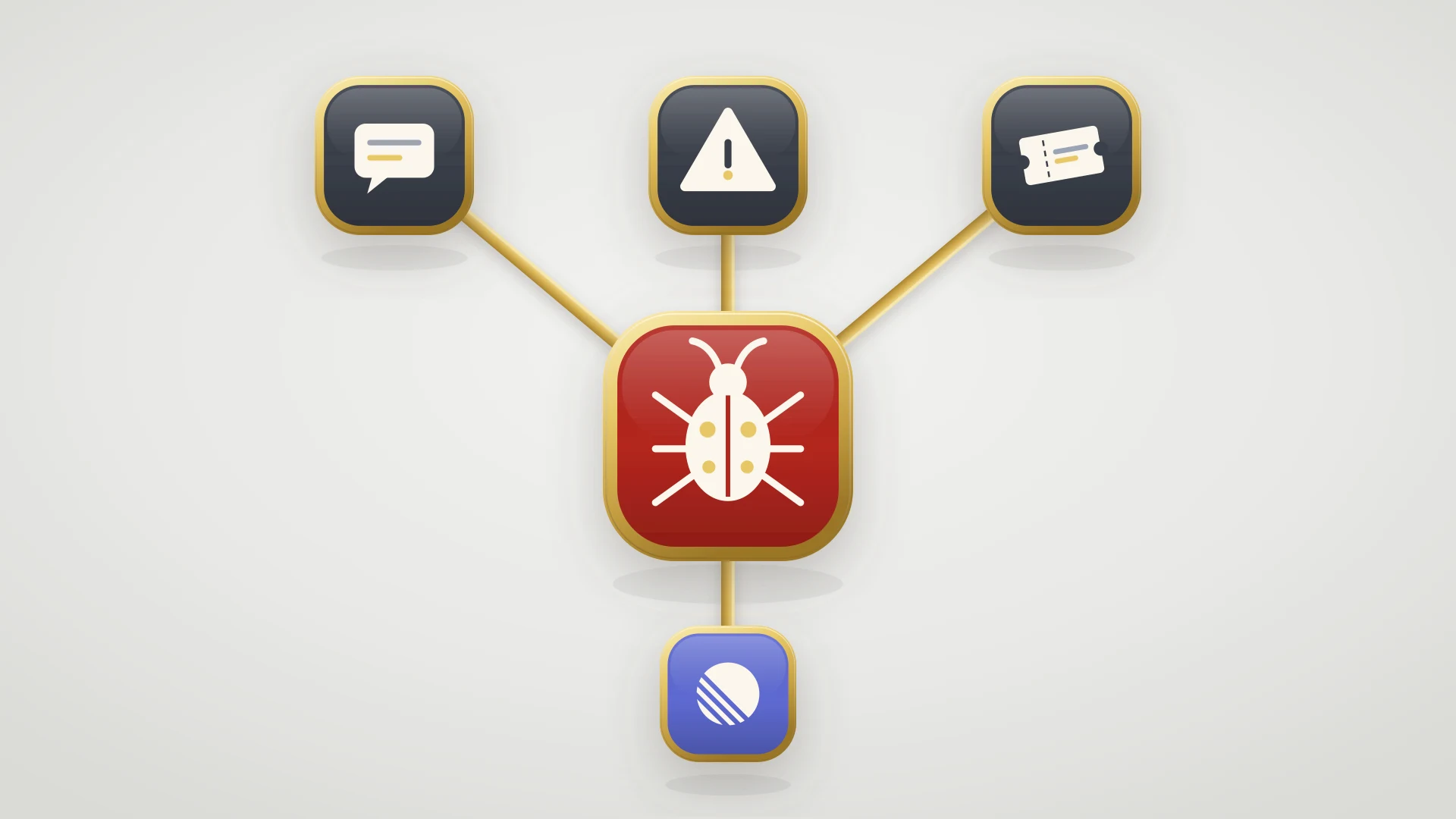
Teams automate routing, SLAs and reminders, and the tickets that hurt most still move by hand: the bugs. An agent copies the ticket into the tracker, pastes the link into a note, and then nothing in HubSpot changes when engineering ships the fix. The SLA clock says the ticket is fine. The customer is still waiting.
The ticket that needs engineering is the one HubSpot ticket automation stops at.
HubSpot's built-in connected app actions include Slack, but not Linear, and Linear has no native HubSpot integration. So for a team that builds in Linear, the last step of ticket automation has to come from an app.
Automating the Handoff From HubSpot Tickets to Linear
IssueLinker is a HubSpot Marketplace app that connects tickets to Linear issues. For ticket automation, it adds three things.
Workflow actions
Create Linear issue sets the team, title, description, project, status, assignee, labels, labels from a ticket property, priority and a due date from a ticket date property. Create Linear issue from template uses one of your Linear issue templates. Link Linear issue links an issue that already exists, from a ticket property holding its URL or key. Each returns the issue key and URL for later steps, such as a notification to the ticket owner, and none opens a second issue for a ticket that is already linked.
Linear status on the ticket
The linked issue's status, status type, key, URL, assignee, team and priority are written to ticket properties, so your workflows can trigger on them. Trigger on Linear Issue Status Type is completed, and the workflow works across every Linear team however each one names its states.
Status rules
In the app's settings, a rule can move the ticket to a pipeline stage you choose when the Linear issue reaches chosen states, or when its priority, labels or assignee change. Rules can be scoped to one pipeline. They are off by default, and without one the ticket's stage does not change.
The workflow actions need Professional, like any workflow. The ticket card, where a rep creates or links an issue in one click, optionally drafted by AI from the ticket conversation, works on any HubSpot plan, and so do comment sync and status rules. See the HubSpot Linear integration, or compare every option in our Linear HubSpot integration guide.
Automating HubSpot tickets and building in Linear?
IssueLinker adds Create and Link Linear issue actions to ticket workflows and writes the Linear status back to the ticket. $39 per month flat, unlimited users, 14-day free trial.
Who This Guide and IssueLinker Are Not For
If your support runs on Zendesk, Intercom or Front, Linear connects to those natively, so you don't need IssueLinker. If engineering works in Jira or GitHub, the same handoff applies, but the setup differs: see the HubSpot Jira integration guide. And if your team rarely escalates to engineering, HubSpot's own routing, SLAs and workflows cover the job.