Quick summary
Linear bug tracking, the short answer: Linear has no separate bug type. A bug is an ordinary issue with a Bug label, a bug report template and a priority, worked through the Triage inbox. All of that is on every plan, including Free. Business ($16 per user per month billed yearly) adds Issue SLAs, triage rules and the Zendesk and Intercom integrations.
Set it up in this order: turn on Triage, create one Bug label, build a form template, agree what each priority means, add SLAs, then connect where bugs come from (Sentry, Slack, your support tool).
Where it stops: Linear's support integrations don't include HubSpot, so bugs reported on HubSpot tickets need an app to reach Linear and to report the fix back to support.
Linear Bug Tracking at a Glance
| Feature | What it does for bugs | Plan |
|---|---|---|
| Labels and label groups | Mark an issue as a bug and classify it | All plans |
| Issue templates and form templates | Make every bug report carry repro steps and environment | All plans |
| Priority | Urgent to Low, and Urgent notifies the assignee | All plans |
| Triage | A holding inbox for bugs filed by integrations or other teams | All plans |
| Sentry integration | Create or link an issue from an error, resolve the error when the issue closes | All plans |
| Issue SLAs | A deadline on each bug by priority | Business and Enterprise |
| Triage rules, responsibility, Triage Intelligence | Route, assign and label incoming bugs automatically | Business and Enterprise |
| Zendesk and Intercom integrations | File bugs from support conversations | Business and Enterprise |
| Issues | Free stops at 250, Basic and above are unlimited | Basic ($10) and up for unlimited |
Three questions decide how much of this you need:
Answer these first
- Which Linear plan are you on? Free covers the setup but caps you at 250 issues. SLAs and triage automation start at Business.
- Where do bugs come from? Error tracking, Slack, a support tool, or engineers filing them by hand. Each needs its own intake.
- Who tells the customer when it is fixed? If nobody owns that step, plan for it now, not after the first angry follow-up.
In this article
1.
2.
3.
4.
5.
6.
7.
8.
9.
10.
11.
Can You Use Linear for Bug Tracking?
Yes, and most teams on Linear already do. Linear is an issue tracker, and a bug is a kind of issue. There is no separate bug object, bug workflow or bug field. What makes a bug a bug in Linear is the setup around the issue:
A label
A Bug label tells everyone, and every filter, view and report, that this issue is a defect rather than a feature or a chore.
A template
A bug report template makes sure the issue arrives with steps to reproduce, expected and actual behaviour, and the environment.
A path in
Triage catches bugs filed by integrations and other teams, so they are reviewed before they reach the backlog.
A deadline
Priority, plus Issue SLAs on Business, decides how fast each bug gets fixed.
That setup takes about an hour. Skip it and bugs still get filed, but they arrive as one-line titles in the backlog, nobody can count them, and urgent ones wait behind planned work. If you want the process side first, our bug triage guide covers how to review and rank bugs in any tool.
How to Set Up Bug Tracking in Linear
Do these in order. Each step depends on the one before it.
- 1
Turn on Triage for each engineering team
In Team settings, open Triage and switch it on. Bugs created by integrations such as Slack or Sentry, or by people outside the team, then land in Triage instead of the backlog.
- 2
Create one workspace-level Bug label
One label, at the workspace level, so every team means the same thing by "bug" and you can count bugs across teams.
- 3
Build a bug report form template
Required fields for steps to reproduce, expected and actual behaviour, and environment, with the Bug label preset.
- 4
Write down what each priority means for a bug
Urgent, High, Medium and Low, in one sentence each, so two people triaging the same bug pick the same priority.
- 5
Add SLAs (Business and Enterprise)
Start with Linear's defaults, 24 hours for Urgent and 1 week for High, then tune them to your own fix times.
- 6
Connect where bugs come from
Error tracking, Slack and your support tool, each set to use the bug template so reports arrive complete.
Linear Labels for Bugs
Labels can be set at the workspace or the team level. For bugs, use the workspace level: a team label only exists in one team, so a cross-team "how many open bugs do we have?" view breaks the moment a second team names its label differently.
If you want more detail than "bug", use a label group rather than more top-level labels. A group adds one level of nesting, and an issue can carry only one label from each group. That makes groups good for mutually exclusive choices. You can create a grouped label straight from the label picker by typing the group and label together, such as Type/Bug.
Type group
Bug, Feature, Improvement. One per issue, which is exactly how you want a type to behave.
Area labels
Billing, Auth, Mobile. Keep these as plain labels if one bug can touch two areas.
Descriptions
Give each label a one-line description. Linear shows it on hover, and Triage Intelligence reads it when it suggests labels.
Resist a "Severity" label group. Priority already does that job and drives SLAs, so a second scale only creates disagreements. Our guide to bug severity vs priority explains when teams still keep both.
Linear Issue Templates for Bug Reports
Create templates under Workspace settings > Templates or Team settings > Templates. Linear has two kinds:
Standard template
- Presets properties such as team, status, priority and labels
- Placeholder text in the description prompts the reporter
- Best for engineers filing their own bugs
Form template
- Structured fields that can be required
- Text, long text, dropdown, checkbox and date fields, plus customer, label group, priority, title and due date
- Works in Linear, the Slack integration and Asks
For bugs, a form template is usually worth it, because the people reporting bugs are often not engineers. Make these fields required: steps to reproduce, expected behaviour, actual behaviour, and environment (browser, app version, account). Add a customer field if bugs come from customers, and preset the Bug label.
Then set it as the default. Default templates are configured on a team's template settings page and can differ for team members and people outside the team. Form templates can only be the default for people outside the team, which is the right audience anyway: they are the ones who forget the repro steps. Anyone can open a template with Option/Alt + C.
Templates also make bugs measurable. Linear lets you filter issues by the template they were created from, wherever they were filed, so "how many bug reports came in this month, and how many are fixed?" becomes one Insights view on Business. Our bug tracking template lists the fields worth including in more detail.
Working the Bug Queue in Linear Triage
Triage is a special inbox for each team. Open it with G then T. Each bug gets one of four actions:
| Action | Shortcut | What happens |
|---|---|---|
| Accept | 1 | Optional comment, then the issue moves to the team's default status |
| Decline | 2 | The issue is set to a Canceled status, with an optional explanation |
| Mark as duplicate | 3 or MM | Merged into an existing issue, which receives its attachments and customer requests |
| Snooze | H | Hidden until a time you choose or new activity, whichever comes first |
The duplicate action matters more for bugs than for anything else. The same bug gets reported by five customers. Merging keeps one issue and moves every customer request onto it, so the canonical bug shows how many customers hit it.
On Business and Enterprise, three features automate the queue. Triage rules set the team, status, assignee, label, project or priority when an issue that matches a filter enters Triage, such as raising the priority of any bug from your three largest customers. Triage responsibility names who watches the queue and can rotate it with PagerDuty, Opsgenie, Rootly or incident.io schedules. Triage Intelligence suggests assignees and labels and flags likely duplicates. Our Linear triage guide covers each in depth.
Priority and SLAs for Bugs
Linear has five priority levels: Urgent, High, Medium, Low and No priority. Marking an issue Urgent notifies the assignee, and sends an urgent email too if they have email notifications on. Issues with no priority sort last.
Issue SLAs are on Business and Enterprise. Linear applies an SLA automatically to any issue that matches the rules in SLA settings. The defaults give Urgent issues 24 hours and High issues 1 week, and remove SLAs from Medium, Low and No priority issues. When an issue matches several rules, only the first one applies, so put the strictest rule at the top. SLAs can count calendar time or business days, which default to Monday through Friday. Each SLA shows a status from low risk through to breached, then achieved or failed once the issue is done.
A bug-only policy is a good first change. Add rules that check for the Bug label, so feature work marked High doesn't get a one-week clock. Here is a starting point we suggest, not a Linear default:
| Bug priority | Means | SLA to start with |
|---|---|---|
| Urgent | Customers blocked, data at risk, or a security issue | 24 hours |
| High | A core flow broken for some customers, no workaround | 1 week |
| Medium | Broken with a workaround | No SLA, fix in the next cycles |
| Low | Cosmetic or rare | No SLA, let auto-close handle it |
If you are on Basic, you can still agree the same targets. You just track them by hand with a view sorted by priority and created date.
Keeping the Bug Backlog Clean
Bug backlogs grow faster than any other kind. Linear has two automations for this, both in Team settings > Workflows & automations:
Auto-close
Closes issues that have not been updated for a period you set, posts a history item and notifies subscribers. It skips issues in an active cycle or unfinished project, and waits for issues with a future due date, an active SLA, or open sub-issues. Anyone can reopen an auto-closed issue.
Auto-archive
Archives closed issues after they have stayed completed, canceled or auto-closed and inactive for the period you set.
Auto-close suits Low priority bugs. If nobody has touched a cosmetic bug in six months, closing it is more honest than leaving it open.
Watch the Free plan cap. Linear's Free plan includes 250 issues and 2 teams. Bugs are usually what fills it: an error tracker and a support team can file 250 issues in a few months. When you hit it, new issues can't be created until you archive or upgrade. Basic, at $10 per user per month billed yearly, makes issues unlimited. Our Linear pricing guide works through what each plan costs for a real team.
Where Bugs Come From: Connecting Intake
Most bugs are not filed by engineers. They arrive from tools, and each source needs to land in Triage with the bug template applied.
Error tracking (Sentry)
From a Sentry issue, create a Linear issue with the error details prefilled, or link an existing one. When the Linear issue is completed, the linked Sentry issue is resolved, and reassigning in Linear updates the Sentry assignee. It works with public Linear teams only.
Slack
Create an issue from any Slack message and pick a template from the dropdown, including form templates. On Business, Linear Asks turns Slack and email requests from people outside Linear into issues. See the Linear Asks guide and the Linear Slack integration.
Support tools
The Zendesk and Intercom integrations, on Business, let agents file an issue from a conversation and pick a template that presets Triage status and the Bug label. Issues created from Intercom, Zendesk, Front or Asks also get a customer request pointing back to the conversation, covered in our Linear customer requests guide.
The Most Expensive Mistake: Tracking Bugs Customers Never Hear About
A well-run Linear bug queue can still fail the people who reported the bugs. Engineering fixes the issue, closes it, and moves on. The customer who reported it is still waiting on a support ticket that nobody has touched since the day it was escalated.
A bug is not finished when the issue closes. It is finished when the customer who reported it hears that it is fixed.
The fix is a link that works in both directions: the support ticket knows which Linear issue it is waiting on, and finds out when that issue changes. Linear's native support integrations do this for the tools they cover. For everything else, someone copies and pastes, and the closing step is the one that gets skipped. Our bug report reply templates cover what to send the customer once you know.
Linear Bug Tracking for Teams on HubSpot Service Hub
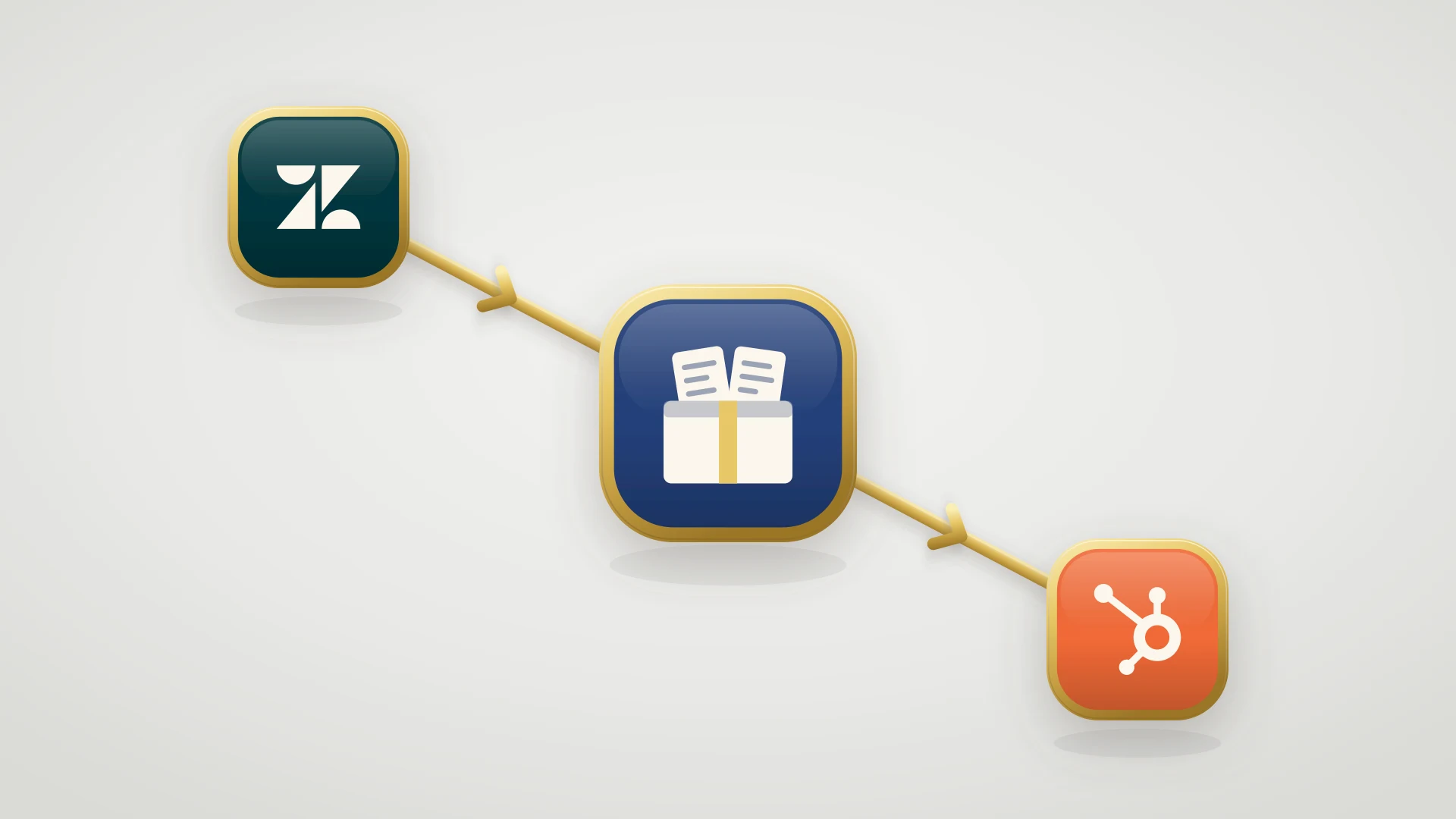
HubSpot is not one of Linear's support integrations, so bugs reported on HubSpot tickets have no native path into Linear. IssueLinker is a HubSpot Marketplace app built for that handoff.
File the bug from the ticket
A card on every HubSpot ticket creates a Linear issue or links an existing one, so duplicates join the canonical bug. It can draft the issue with AI from the ticket conversation, and carries the customer's screenshots into the issue description.
Keep the customer attached
With Customer Requests on, each new issue gets a Linear customer request for the requesting account, so the bug shows which customers hit it.
Talk without switching tools
Comments sync both ways, so an engineer asking for repro steps in Linear reaches the support rep on the ticket.
Hear back when it ships
The Linear status, key, assignee and priority are written to ticket properties. With status emails on, the ticket owner gets an email when the issue is closed. An optional status rule can also move the ticket to a pipeline stage you choose when the issue is done. Both are off by default.
On Service Hub Professional, the Create Linear issue from template workflow action files the issue with one of your Linear templates, so automated bug reports get the same Bug label and fields as manual ones. And if your Linear workspace is on Free and has reached the 250-issue cap, the card says so plainly rather than failing silently. The card itself works on any HubSpot plan. See the HubSpot Linear integration, or compare every option in our Linear HubSpot integration guide.
Support on HubSpot, bugs in Linear?
IssueLinker turns HubSpot tickets into Linear issues, syncs comments both ways, and writes the Linear status back to the ticket. $39 per month flat, unlimited users, 14-day free trial.
Who This Guide and IssueLinker Are Not For
If your support runs on Zendesk, Intercom or Front, Linear connects to those natively, so you don't need IssueLinker. If your bugs only come from engineers and error tracking, the setup above is all you need. And if your team tracks bugs in Jira or GitHub, the same principles apply, but see our issue tracking software guide instead.