Quick summary
HubSpot customer agent, the short answer: it is HubSpot's AI agent that answers customers from your own content on chat, email, forms, WhatsApp and Messenger, and hands off to a human when it cannot. It is the same feature HubSpot's pricing guide calls Breeze Customer Agent.
What it costs: a Professional or Enterprise subscription, plus $0.50 per resolution (50 HubSpot Credits). Professional includes 3,000 credits a month, which covers 60 resolutions.
What to check first: how a resolution is counted, and where conversations go when the agent hands off, especially bug reports.
HubSpot Customer Agent at a Glance
| HubSpot customer agent | |
|---|---|
| What it is | An AI agent that answers customers from your content and hands off to your team |
| Plans | Professional and Enterprise editions of HubSpot. Not on Free or Starter |
| Price | $0.50 per resolution on messaging channels (50 HubSpot Credits). Voice $0.50 per minute |
| Included credits | Starter 500, Professional 3,000, Enterprise 5,000 a month. They do not roll over |
| Extra credits | $0.010 per credit pay as you go, or $10 per pack of 1,000 a month |
| Channels | Live chat, email, forms, WhatsApp, Facebook Messenger, SMS. Calling is in beta |
| Free to try | 14 days of free access on first setup. Testing never uses credits |
| Handoff | Live or async, to an inbox, help desk, users, teams or a workflow |
| Best for | Teams with good help content and a lot of repeat questions |
Before you turn it on, answer three questions:
Answer these first
- Is your help content good enough to answer from? The agent answers from your knowledge base and website. If the answer is not written down, the agent does not have it.
- How many conversations a month could it resolve? Multiply that by $0.50, subtract your included credits, and you have the bill.
- Where do handoffs land? Decide who picks up what the agent cannot answer, and what happens to bug reports, before the first customer talks to it.
In this article
1.
2.
3.
4.
5.
6.
7.
8.
9.
10.
11.
What Is the HubSpot Customer Agent?
The HubSpot customer agent is an AI support agent built into HubSpot. HubSpot's knowledge base describes it as a way "to automatically respond to customer questions using your existing content." You point it at your knowledge base and website, assign it to a channel, and it answers customers there.
For each message, HubSpot says the agent does one of three things based on its confidence: it replies with an answer backed by a source, it asks a follow-up question, or it reassigns the conversation to a human.
You will see two names for it. HubSpot's pricing guide lists Breeze Customer Agent, and the product page and knowledge base say customer agent. They are the same feature.
HubSpot's product page says customers see a 70% average resolution rate, with top teams at 90%. That is HubSpot's own figure, and your number will depend on your content and on what your customers ask. A team whose tickets are mostly "how do I" questions will see more resolved than a team whose tickets are mostly bugs.
What the HubSpot Customer Agent Can Do
Answer from your content
It answers from existing HubSpot content, such as knowledge base articles, and from website pages you sync. HubSpot can crawl up to 5,000 URLs on a domain, and you can include or exclude paths such as /blog/.
Work across channels
You can assign it to live chat, email, form, WhatsApp, Facebook and SMS channels, and calling is in beta. HubSpot says it is available in all HubSpot-supported languages.
Perform actions
You can set up actions the agent may perform. HubSpot's examples are resetting a password and booking a meeting.
Read and update contact data
You can let it read or update CRM properties, with a verification step such as matching the customer's email. Two limits apply: contact properties only, and a maximum of 10.
Draft replies for your reps
Reply recommendations put a suggested answer in the help desk thread for a rep to send, edit or dismiss. You do not need to deploy the agent to a channel to use them, and HubSpot says they do not consume credits.
Hand off to a human
When it cannot answer, or the customer asks for a person, it passes the conversation to your team under rules you write.
If you are still deciding whether Service Hub is the right help desk at all, our HubSpot Service Hub review covers the whole product.
HubSpot Customer Agent Pricing
HubSpot customer agent pricing has two parts: the subscription that unlocks it, and the credits it uses.
The subscription. The agent needs a Professional or Enterprise edition. For Service Hub, HubSpot's pricing guide lists Professional at $90 per seat per month billed annually, plus a one-time $1,500 onboarding fee, and Enterprise at $150 per seat plus $3,500. Our HubSpot Service Hub pricing guide breaks those down.
The credits. HubSpot's product page prices the agent at $0.50 per resolution on messaging channels and $0.50 per minute for voice. In HubSpot's rate sheet that is 50 HubSpot Credits to "resolve one conversation" on text channels, and 50 credits per minute of voice, which is in beta.
| Starter | Professional | Enterprise | |
|---|---|---|---|
| Customer agent available | No | Yes | Yes |
| Credits included per month | 500 | 3,000 | 5,000 |
| Resolutions those credits cover | Not applicable | 60 | 100 |
Three details in HubSpot's catalog matter here. Included credits reset every month and do not roll over. They are not added together across hubs, so you get the allotment of your highest edition. And other credit features draw from the same pool, so the agent may not get all of them.
Past the included credits, you buy more: $0.010 per credit pay as you go, or $10 a month per capacity pack of 1,000. Both work out to the same $0.50 per resolution.
What a month costs
Here is the credit bill on Service Hub Professional, before seats, if the agent uses all 3,000 included credits.
| Resolutions per month | Credits used | Extra credits to buy | Monthly credit cost |
|---|---|---|---|
| 60 | 3,000 | 0 | $0 |
| 200 | 10,000 | 7,000 | $70 |
| 500 | 25,000 | 22,000 | $220 |
| 1,000 | 50,000 | 47,000 | $470 |
For comparison, Intercom's pricing page lists its Fin AI agent from $0.99 per outcome. HubSpot's own page calls its agent "half the price of leading competitors," which matches that one figure. Our guide to the best customer support software for B2B compares the seat prices around those numbers.
If you run out of credits, HubSpot says the agent stops being assigned to new conversations until your reset date or until you buy more, and new conversations follow your handoff process. You can also pause the agent's credit usage yourself.
What counts as a resolution
You pay per resolution, so the definition is worth reading closely. HubSpot's knowledge base says a conversation is resolved when either of these happens:
The agent replied, and nobody asked for a human
The conversation has at least one agent reply that shared a content source or performed an action, and there is no qualifying handoff within 72 hours of the visitor's last response.
A lead was qualified
If you use the agent to qualify leads, marking a lead qualified, partially qualified or not qualified counts as a resolution straight away.
A qualifying handoff is one the visitor starts: they ask for a human, or they trigger a handoff phrase or guideline you configured. HubSpot is explicit about the other case: "Manual agent assignment, including assignment through workflows, is not considered a qualifying handoff."
Two more rules from the same page. Credits follow resolutions, not messages, so a long conversation is still one resolution. And if a customer replies to an email thread more than 72 hours later, the conversation reopens, and a second resolution can be charged.
How to Set Up the HubSpot Customer Agent
HubSpot customer agent setup happens under Service, then Customer Agent. Plan for an afternoon, most of it spent on content and handoff rules. One thing to know before you start: HubSpot says an agent can be edited or paused at any time, but once created it cannot be deleted.
- 1
1. Check the requirements
You need a Professional or Enterprise subscription, an assigned seat with customer agent editor permissions, and at least one Facebook, WhatsApp or live chat channel connected to the conversations inbox or help desk. In AI settings, turn on generative AI access and the data switches HubSpot lists, including CRM data and files data. If your site is not hosted on HubSpot, the HubSpot tracking code must be on the pages where the chat runs.
- 2
2. Create the agent and add content
Give the agent a name and pick a personality: Friendly, Professional, Casual, Empathetic or Witty, or your brand voice if you have set one up. Then choose existing HubSpot content and enter your website URL to sync pages.
- 3
3. Set guidelines, actions and CRM access
Write guidelines for how it should respond, add any actions, and choose which contact properties it may read or update. Keep the list short. The cap is 10 properties.
- 4
4. Write the handoff rules
Under Train, then Human handoff, add guidelines for when the agent must hand off. HubSpot's own example triggers a handoff on "Cancellation" or "Refund." Then choose, separately for chat and email, a live handoff, an async handoff, or no handoff, and where the conversation goes.
- 5
5. Test it
Ask it your 20 most common questions in the test panel, and use batch testing to run many at once. Testing Insights shows why it answered the way it did and which sources it cited. Testing does not use credits.
- 6
6. Deploy to one channel at a low coverage
Under Deploy, then Channels, assign the agent to one channel. Set working hours and a conversation coverage percentage, so it handles only a share of conversations at first. HubSpot recommends starting with one channel or a small percentage, then reviewing escalations and knowledge gaps.
The 14 days of free access start when you opt in on first setup, so have your content ready before you start the clock. Our HubSpot ticket automation guide covers the workflows and SLAs that sit behind the agent on the same plans.
Where the HubSpot Customer Agent Stops
The customer agent is strong at
- Repeat questions your help content already answers
- Answering outside working hours
- Drafting replies for reps at no credit cost
- Living in the same help desk as your tickets
- Pay per resolution instead of per conversation
The customer agent falls short on
- It needs Professional or Enterprise, so Free and Starter teams are out
- It only knows what your content says
- CRM access is contact properties only, 10 at most
- A resolution can be charged even if a rep later takes over
- It cannot fix anything in your product
The last point matters most for a software company. The agent can explain a feature. It cannot repair one. When a customer reports a bug, the best outcome is a fast, clean handoff, with the details a person needs.
The Most Expensive Mistake: Letting the Agent Close Bug Reports
Picture a customer who writes in because an export fails. The agent finds your "How to export data" article and shares it. The customer has read that article already. They close the chat and do not write back.
By HubSpot's definition, that conversation is on track to be a resolution: the agent replied with a content source, and the visitor did not ask for a human or trigger a handoff phrase. You are charged $0.50, the resolution rate goes up, and nobody on your team knows there is a bug.
Three settings prevent it:
Write handoff guidelines for bug language
Add a guideline that hands off when a customer says something is broken, shows an error, or worked before and does not now. Because the visitor triggers it, it counts as a qualifying handoff, so it is not billed as a resolution.
Send those handoffs to the help desk as tickets
Use the handoff option that routes help desk channels through a ticket-based workflow. HubSpot says the agent then creates a ticket and moves it to help desk, so the report is tracked, not just read.
Review what the agent resolved
Read a sample of resolved conversations every week, and use the knowledge gaps report. Look for customers who received an article and went quiet.
Once the ticket exists, it needs the same care as any escalation. Our escalation management guide covers the process, and our bug report guide covers what the ticket should contain.
From the Customer Agent to Engineering: HubSpot and Linear
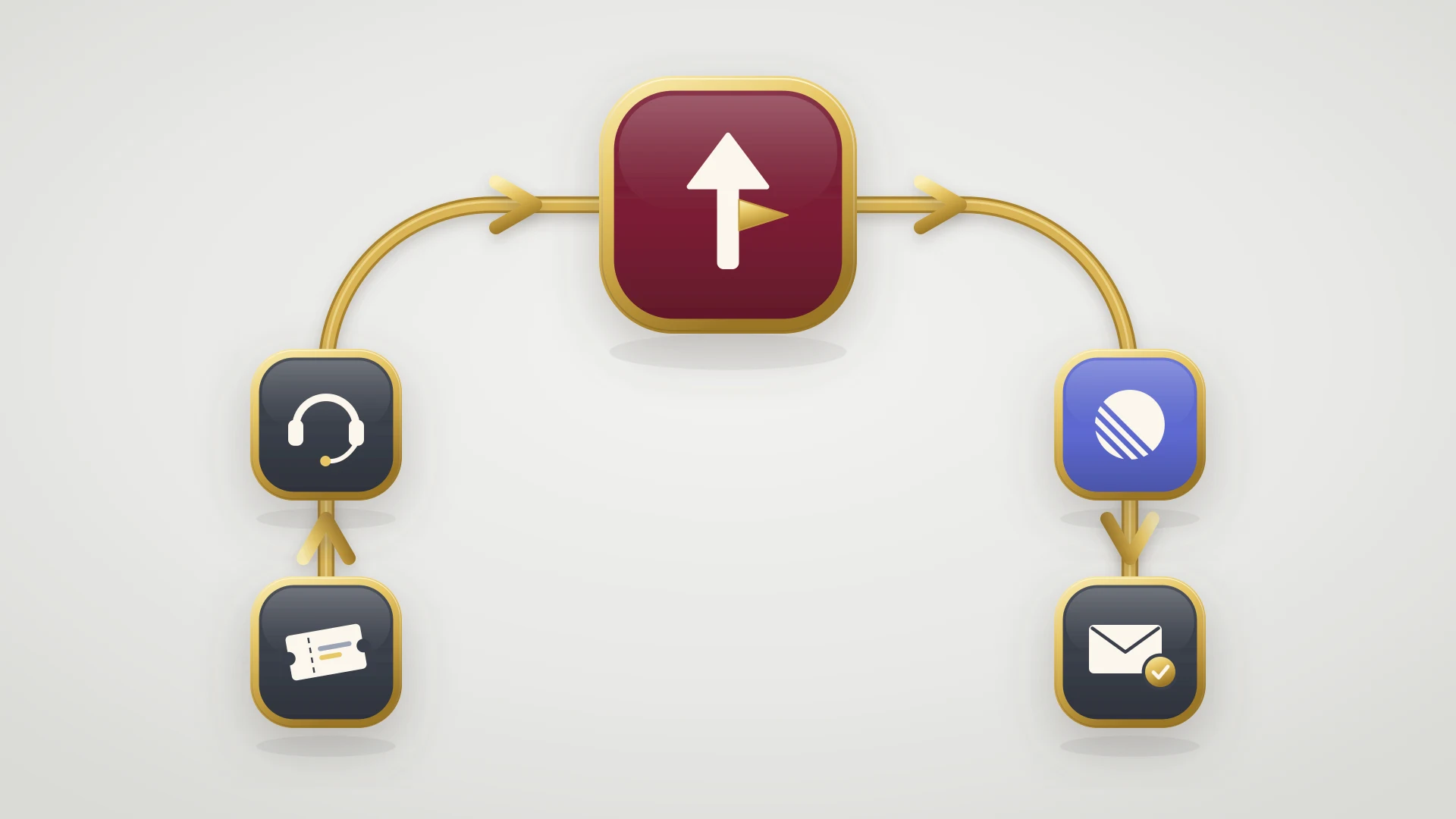
For a B2B software team, the conversations the agent hands off are often the ones that matter most: bugs, broken integrations, wrong data. They need to reach engineering, and the answer needs to come back to the customer.
HubSpot handles the first half. The handoff becomes a ticket in the help desk with an owner. HubSpot does not build a Linear integration, so if your engineers work in Linear, the ticket stops there unless someone copies it over.
IssueLinker is a HubSpot Marketplace app for that step. It does not plug into the customer agent itself. It works on the ticket the handoff creates:
Create or link the Linear issue from the ticket
A card on the HubSpot ticket creates a Linear issue, pre-filled from the ticket and optionally drafted by AI from the conversation, or links an existing one. On Professional and Enterprise, a workflow action can create the issue automatically.
Comments both ways
Notes on the ticket and comments on the issue sync in both directions, with loop prevention, so engineering's questions reach the rep who owns the ticket.
Status back on the ticket
The Linear status is written to properties on the HubSpot ticket, so support can see and report on it. Optional rules move the ticket to a pipeline stage when the issue reaches a Linear status.
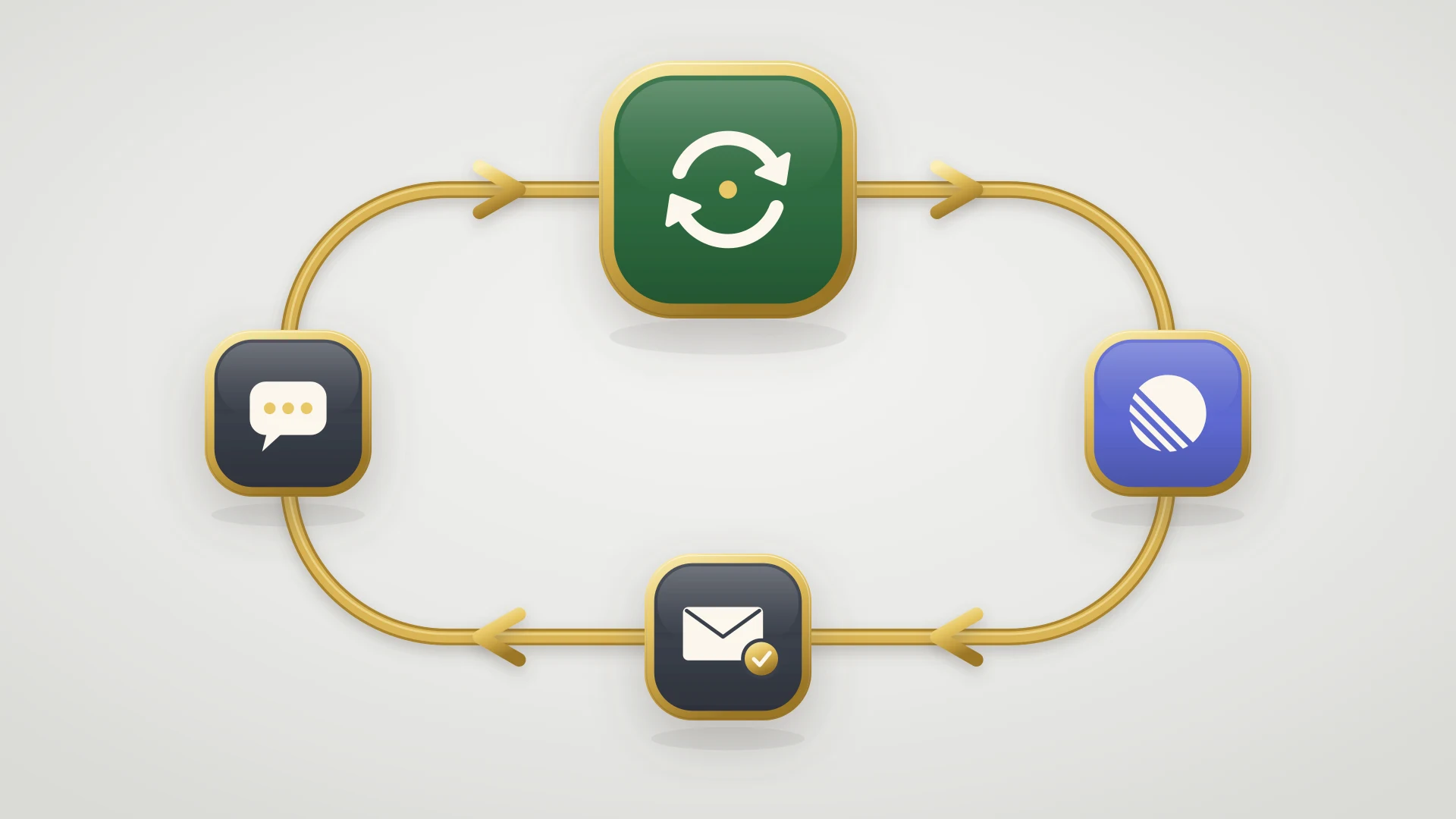
Our Linear HubSpot integration guide compares every way to connect the two, and our customer feedback loop guide covers telling the customer when the fix ships.
Send the tickets your customer agent hands off to Linear
IssueLinker creates the Linear issue from the HubSpot ticket, syncs comments both ways and writes the issue status back to the ticket. $39 per month flat, unlimited users, any HubSpot plan, 14-day free trial.
Should You Turn It On?
Your knowledge base is current, and a good share of conversations are questions it already answers. Start with reply recommendations, then one channel at a low coverage percentage.
The agent answers from what you have written. Spend a month on the knowledge base, use reply recommendations in the meantime, and deploy later.
At 100 conversations a month, the agent saves little, and Professional costs $90 per seat plus onboarding. Upgrade when you need the help desk, knowledge base and SLAs too.
Who This Guide and IssueLinker Are Not For
This guide is written for B2B teams running support on HubSpot, especially software companies whose hardest tickets end up with engineering. If you run a high-volume consumer contact center, voice, workforce management and deflection rates will matter more than the handoff to engineering.
IssueLinker is for teams that run support on HubSpot Service Hub and build in Linear, Jira or GitHub. It is not for teams whose support runs on Zendesk, Intercom or Front, since Linear connects to those natively, and it does not sync deals, contacts or custom fields between tools.