Quick summary
Escalation management, the short answer: it is the process for moving a customer issue that the first person cannot solve to someone who can, and getting the answer back to the customer. There are three types: functional (to the right skills), hierarchical (up the chain) and automatic (triggered by a rule, usually a breached SLA).
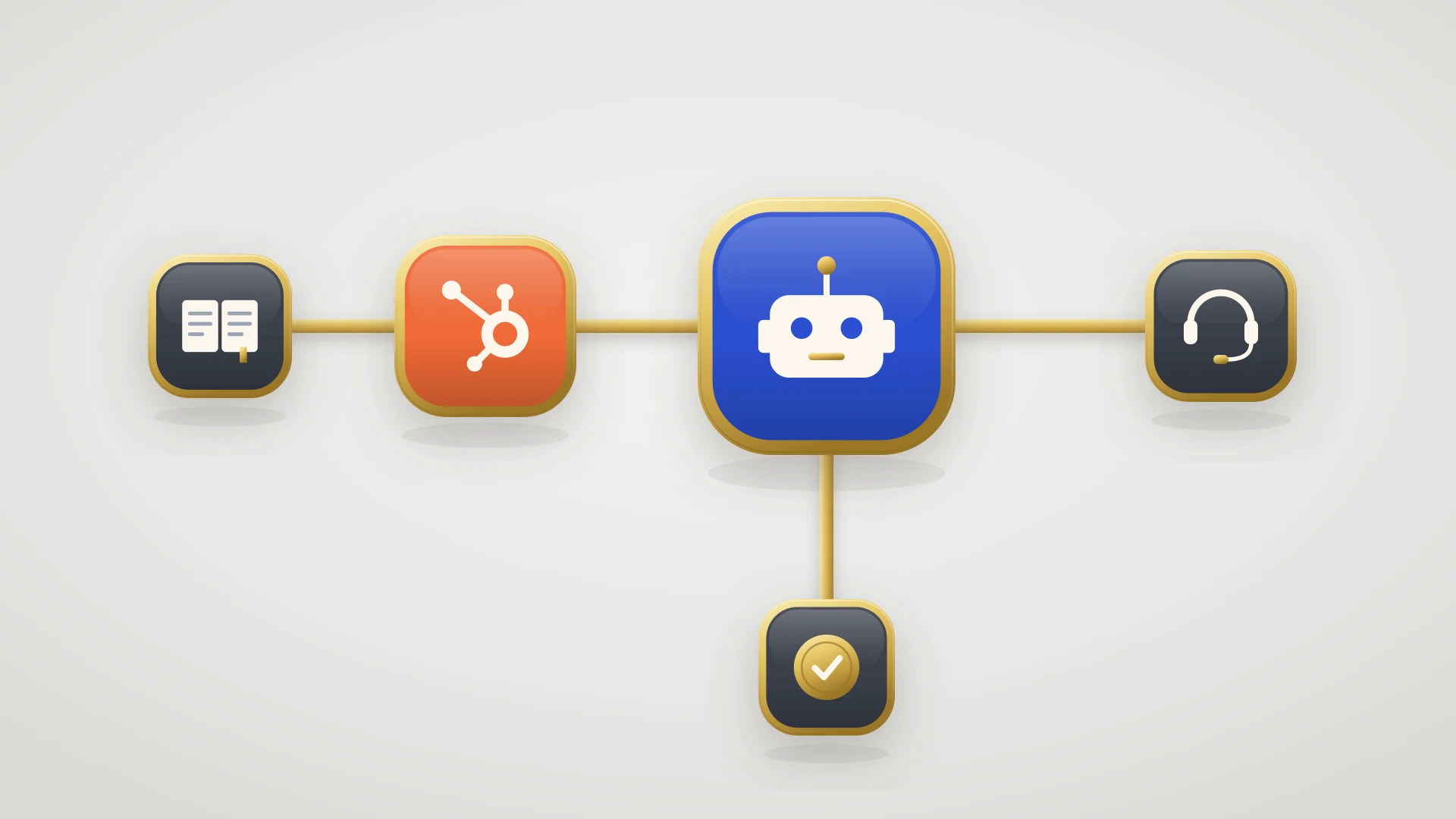
The escalation process in six steps: trigger, document, route, own, update, close. Most teams write down the first three and leave the last three to memory.
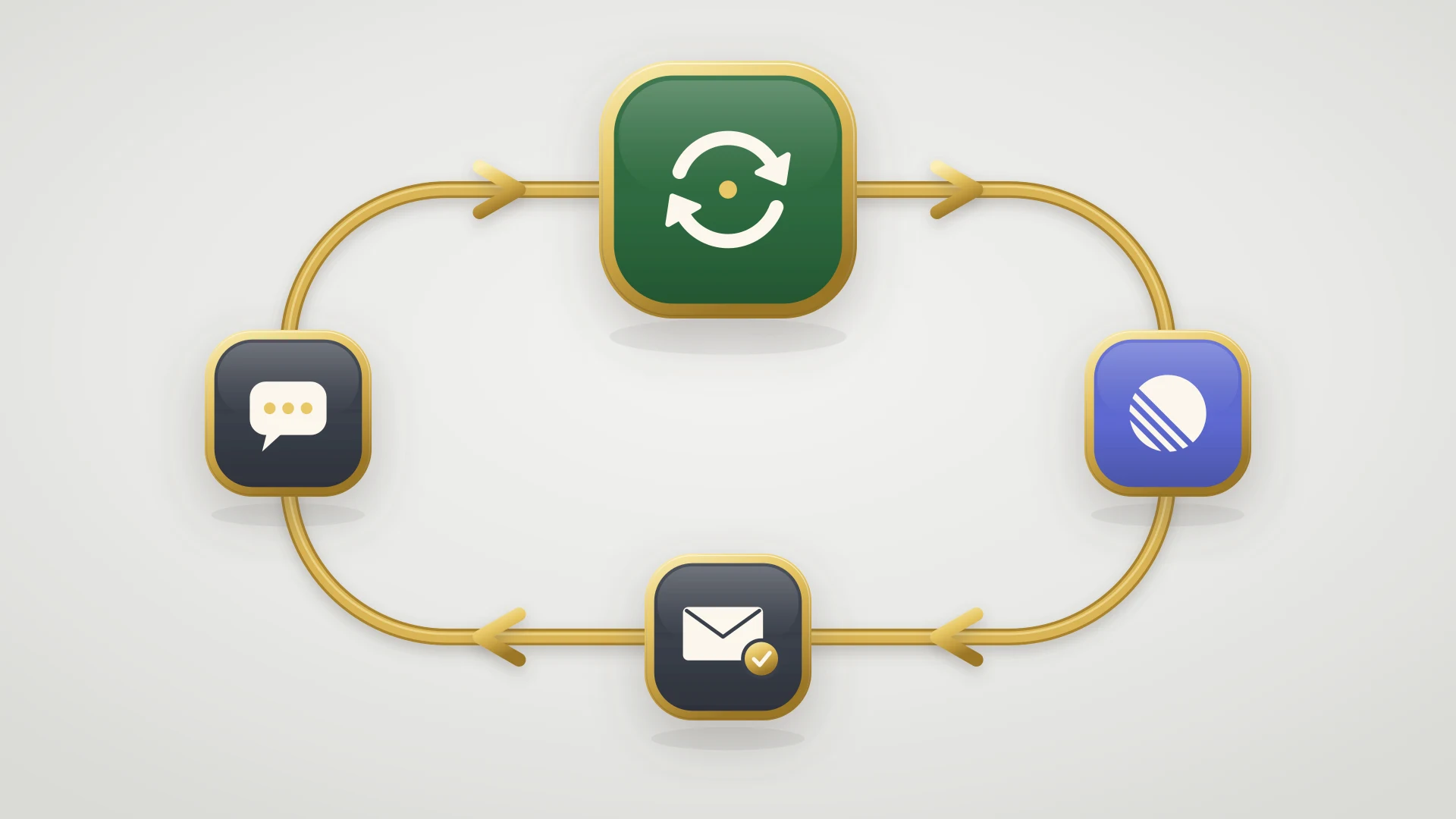
Where it breaks in B2B SaaS: at the escalation to engineering. The issue leaves the help desk for Linear or Jira, and nobody owns the trip back to the ticket.
Escalation Management at a Glance
| Escalation type | What triggers it | Where it goes | B2B SaaS example | How it fails |
|---|---|---|---|---|
| Functional | The fix needs skills or access the agent lacks | A specialist team: tier 2, engineering, billing | A reproducible bug goes to engineering | The issue leaves the help desk and goes quiet |
| Hierarchical | The relationship is at risk, or a decision needs authority | Support lead, account owner, executive | A key account threatens to churn over an outage | The manager is told but nobody owns the follow-up |
| Automatic | A rule fires: a breached SLA, an urgent ticket unanswered | A lead is notified, or the ticket is reassigned | An urgent ticket passes its first-reply target | Alerts fire so often that everyone ignores them |
Before you redesign anything, check three things:
Answer these first
- Can a new agent tell, from a written rule, when a ticket should be escalated and to whom? If the answer is "ask someone," you have escalation habits, not escalation management.
- When a ticket is escalated, who owns it? Each escalation needs one named person who stays accountable until the customer has the answer.
- How does support find out an escalation is done? If someone has to check engineering's tracker, escalations close late or not at all.
In this article
1.
2.
3.
4.
5.
6.
7.
8.
9.
10.
11.
12.
What Is Escalation Management?
Escalation management is the process for handling customer issues the first person cannot resolve. HubSpot describes it as passing an issue along to someone else when an agent can't solve it. That is the start. A working escalation management process also decides when an issue should move, keeps someone accountable while it is away, and gets the answer back to the customer.
Three terms get mixed up here, and it helps to keep them apart:
Escalation management
The whole practice: the triggers, the handoff, ownership while the issue is away, customer updates and closing the escalation. This post covers it end to end.
An escalation matrix
A tool inside it: a table of severity levels, who owns each one and how fast they respond. Our escalation matrix guide has a template you can copy.
An escalation policy
Usually an engineering term. In on-call tools such as PagerDuty, the escalation policy is the order of responsibility for reacting to an incident: who is paged first, who is paged if they don't acknowledge, and so on up to engineering leadership.
The tiers an issue moves through, from tier 1 to tier 3, are covered in our tier 2 support guide. This post is about the movement itself, and especially the part most guides leave out: the way back.
The 3 Types of Escalation
Most escalation management guides, including HubSpot's, sort escalations into three types. Each needs a different owner and a different rule.
- 1
Functional escalation: to the right skills
The issue moves sideways to a team that can solve it: tier 2 for a hard configuration question, billing for a refund, engineering for a bug. In a software company this is most escalations, and the one that matters most, because it leaves the help desk.
- 2
Hierarchical escalation: up the chain
The issue moves up to someone with more authority, such as a support lead, the account owner or an executive. It happens when the relationship is at risk or a decision is above the agent's pay grade: a credit, an exception to policy, a customer asking for a manager.
- 3
Automatic escalation: triggered by a rule
A rule moves or flags the issue without anyone deciding to. HubSpot describes the classic case: an SLA violation notifies higher-ups automatically. It is the safety net for tickets nobody noticed.
Priority is not a fourth type. It is the input that decides which type applies and how fast. A severity scale that everyone reads the same way does more for escalation management than any tool; our guide to bug severity vs priority levels shows how to define one.
The Escalation Process: 6 Steps
An escalation process is only as good as its weakest step. Here are the six, in order.
- 1
1. Trigger: a written rule says it should move
Escalation triggers are rules, not feelings. "Urgent ticket with no reply in 2 business hours," "needs a code change," "customer on the Enterprise plan reports data loss." If an agent has to guess, some escalate everything and some escalate nothing.
- 2
2. Document: write it up once
The escalation carries everything the next person needs, so nobody asks the customer the same questions again. For a bug that means steps to reproduce, expected and actual behavior, the account and how many customers are affected. Our bug report guide has a template.
- 3
3. Route: to a named owner, not a channel
Each kind of escalation goes to one place with one owner: a queue, an on-call engineer, a support lead. "Posted in #engineering" is not routing. It is hoping.
- 4
4. Own: one person stays accountable
The agent who escalated, or the tier 2 owner, stays on the ticket while the issue is away. Escalating moves the work. It does not move the responsibility for the customer.
- 5
5. Update: the customer hears progress on a rhythm
Tell the customer it has been escalated, what happens next and when you will update them, then keep that promise. "We'll update you by Thursday" is a commitment you control. "Fixed by Thursday" usually isn't.
- 6
6. Close: the answer comes back to the ticket
The fix, the decision or the workaround returns to the ticket, and the owner tells the customer. Only then is the escalation closed. Our customer feedback loop guide covers this last step in depth.
Most escalation processes define steps 1 to 3 carefully and leave 4 to 6 to good intentions. That is backwards. Steps 1 to 3 decide how fast an issue leaves support. Steps 4 to 6 decide whether the customer ever hears back.
Escalation Triggers: When to Escalate
Good escalation triggers are specific enough that two agents would make the same call. These are the five that cover most B2B SaaS teams:
It needs a change support cannot make
A reproducible bug, wrong data, a broken integration or a performance problem. This is a functional escalation to engineering, and the most common one.
It has breached, or is about to breach, an SLA
An automatic escalation: notify the lead before the deadline, not after. Our support SLA management guide covers how to set targets your team can hit.
The impact is high
An outage, data loss, a security concern, or many customers reporting the same thing. Severity alone justifies jumping a tier.
The relationship is at risk
A key account, a renewal coming up, a customer threatening to leave, or the third contact about the same problem. This is a hierarchical escalation to the account owner or a lead.
The agent has been stuck too long
Set a time box, for example 30 minutes of active work on one ticket, after which the agent asks tier 2 instead of grinding. It protects both the customer and the queue.
Customer Escalation Management: When the Customer Escalates
Not every escalation starts with your team. In customer escalation management, the customer is the one pulling the alarm: they ask for a manager, they email your CEO, or their account manager forwards an angry thread with "can someone look at this?"
These escalations are hierarchical by nature, and they go better with a few rules:
Name one owner within the hour
A senior person on your side owns it until it is resolved, and the customer knows their name. Five people replying to the same angry email is worse than one.
Acknowledge the problem plainly
Say what went wrong in their words, without defending the product. Customers escalate because they feel unheard, so being heard comes first.
Give a timeline you control
Commit to the next update, not to the fix, unless engineering has confirmed a date. If the cause is a bug, link the ticket to the engineering issue so the owner sees its progress without asking.
Review it afterwards
Once it is resolved, ask why it escalated: a slow first reply, a bug that went quiet, a promise nobody kept. Fix that, and the next one doesn't happen.
Most customer escalations are not caused by the bug. They are caused by the silence after it was reported.
The Escalation Workflow From Support to Engineering
In a B2B SaaS company, the escalation that matters most is the functional one to engineering, because it is the only one that leaves the support team's tool. Support works in a help desk such as HubSpot. Engineering works in a tracker such as Linear or Jira, and has its own priorities, its own triage and, for incidents, its own escalation policy.
A good escalation workflow to engineering has five parts:
- 1
Check for an existing issue first
If engineering already has an issue for this bug, link the ticket to it instead of filing a duplicate. Every customer who reported it then sits on one issue, and engineering sees how many are affected.
- 2
File it where engineering triages
New escalations should land in engineering's intake, such as Linear's Triage inbox, not in a Slack thread or someone's DMs. One place, reviewed on a schedule.
- 3
Agree priority on one scale
Support's "urgent" and engineering's "Urgent" should mean the same thing. In Linear, Urgent notifies the assignee, and on the Business plan Issue SLAs can put a deadline on each priority; Linear's default rules give Urgent issues 24 hours and High issues 1 week.
- 4
Keep the conversation in one thread
Engineering's questions ("which browser?") and support's answers belong on the issue and the ticket, not in a side channel nobody can find later.
- 5
Send the outcome back to the ticket
When the issue is done, support needs to know the same day, on the ticket, without checking the tracker. This is the step that closes the escalation.
Here is an escalation handoff you can paste into your engineering issue template:
Escalated from support ticket: {ticket link}
Customer: {company} ({plan}, {number of users affected})
Other customers reporting this: {count, with ticket links}

What happened:
{one or two sentences in the customer's words}

Steps to reproduce:
1. {step}
2. {step}
3. {step}

Expected: {what should happen}
Actual: {what happens}
Environment: {browser, app version, account ID}

Impact: {blocked / workaround exists / cosmetic}
Workaround given to customer: {yes, describe / no}
Support owner: {name}, will update the customer by {date}
The last line matters most. It tells engineering who to answer, and it tells support who is on the hook for the customer.
Escalation Management Process Metrics
You don't need a dashboard to start. Track these five numbers for a month, from your help desk and your tracker:
Escalation rate
The share of tickets escalated, by type. A rising rate to engineering can mean more bugs, or a tier 1 that needs better documentation.
Time to escalate
From ticket creation to escalation. Long times mean agents grind too long or the triggers are vague.
Time in engineering
From escalation to the issue being done, by priority. Compare it with the targets you agreed.
Time from fix to customer reply
From the engineering issue closing to the customer being told. This is the number most teams have never measured, and the aim is the same day.
Escalations that never came back
Tickets marked escalated with no linked issue, or with an issue closed weeks ago and no reply to the customer. Each one is a customer who thinks nothing happened.
The Most Expensive Mistake: Treating Escalated as Resolved
The most common escalation management failure looks like success. An agent escalates the bug, sets the ticket to closed or pending, and moves on. First-reply time and resolution time look great. Then engineering ships the fix three weeks later, and nothing on the support side is left open to remind anyone.
Two fixes. First, keep escalated tickets in their own open status, such as "Waiting on engineering," so the queue shows work that is not finished. Second, make the engineering outcome visible on the ticket without anyone checking the tracker. The first is a pipeline setting. The second is a tooling problem, and most teams solve it with a Slack message and a good memory. Our customer feedback loop guide covers the return trip step by step, and our bug report reply email templates cover what to say when the fix ships.
Escalation Management in HubSpot and Linear
If your support team runs on HubSpot Service Hub and your engineers work in Linear, here is how the pieces fit.
- 1
An escalated status in HubSpot
HubSpot's default support pipeline has four statuses: New, Waiting on contact, Waiting on us and Closed. Add one such as "Escalated" or "Waiting on engineering," so escalated tickets stay open and visible.
- 2
Automatic escalation with SLAs and workflows
On Service Hub Professional or Enterprise, help desk SLA goals set targets for time to first reply, next reply and close, and a "due soon" setting flags tickets before they breach. Ticket-based workflows can then notify a lead or reassign an urgent ticket nobody answered. Our HubSpot ticket automation guide shows what each plan can automate.
- 3
Triage, priority and SLAs in Linear
Turn on Triage so escalations land in one inbox, agree what each priority means, and on Linear's Business plan add Issue SLAs so urgent bugs carry a deadline. Our Linear bug tracking guide walks through the setup.
- 4
A link between the ticket and the issue
This is the step HubSpot can't do on its own: HubSpot has no native ticket sync with Linear, so without an app the link is a URL pasted into a note, and the status never comes back.
IssueLinker is the app for that last step. For HubSpot and Linear it does five things that map onto the escalation process:
Route: create or link the issue from the ticket
A card on the HubSpot ticket creates a Linear issue, pre-filled from the ticket, or links an existing one, so the second and third customer join the first issue. On Professional and Enterprise, a workflow action can create the issue automatically when a ticket reaches your escalated stage.
Document: the ticket's facts in the issue
Ticket attachments can come over with the issue, and an optional setting adds chosen ticket properties, such as impact or steps to reproduce, to the issue description.
Update: comments both ways
Notes on the ticket and comments on the issue sync in both directions, with loop prevention, so engineering's questions reach support without a Slack ping.
Own: the issue status on the ticket
The Linear status is written to properties on the HubSpot ticket, so you can filter, report and build views on it. Optional status emails tell the ticket's owner when a linked issue is completed or canceled.
Close: rules that move the ticket, and the issue
Optional status rules move a ticket to a pipeline stage when its issue reaches a Linear status. Stage rules work the other way: moving a ticket to a stage, such as reopening it, moves its Linear issue to the status you choose. Both are off until you set them.
Our Linear HubSpot integration guide compares every way to connect the two tools.
Close every escalation between HubSpot and Linear
IssueLinker creates the Linear issue from the ticket, syncs comments both ways and writes the issue status back to the ticket, so support knows the day an escalation is fixed. $39 per month flat, unlimited users, any HubSpot plan, 14-day free trial.
Who This Guide and IssueLinker Are Not For
This guide is about escalation management in a B2B software company, where the hardest escalations cross from support to engineering. If you run a high-volume consumer contact center, where most escalations are hierarchical and handled by phone, a workforce management or contact center platform will matter more than any of this.
IssueLinker is for teams that run support on HubSpot Service Hub and build in Linear, Jira or GitHub. It is not for teams whose support runs on Zendesk, Intercom or Front, since Linear connects to those natively, and it does not sync deals, contacts or custom fields between tools.