Quick summary
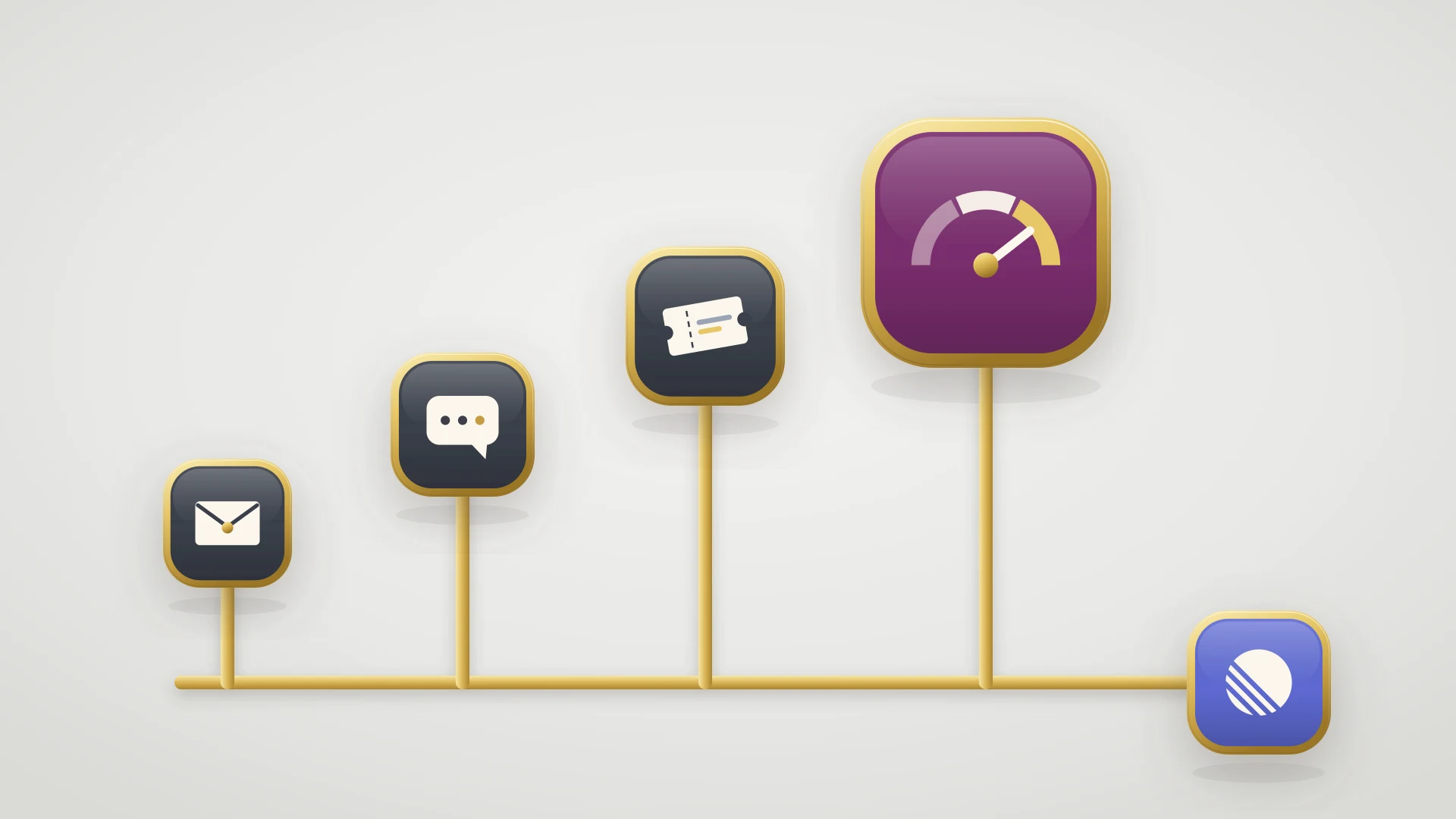
HubSpot help desk, the short answer: it is Service Hub's workspace for managing tickets from team email, chat, forms, calling, WhatsApp and Messenger in one place. Every message on a connected channel becomes a ticket with an owner, a status and an SLA.
What it costs: Service Hub Professional or Enterprise. Professional is $90 per seat per month billed annually, plus $1,500 onboarding, and agents need a Service Seat for views, SLAs and routing rules.
Help desk or inbox: Free and Starter teams get the conversations inbox, which answers messages. The help desk adds ticket queues, routing, SLA goals and reporting.
The HubSpot Help Desk at a Glance
| Feature | What it does | Plan |
|---|---|---|
| Channels | Team email, chat, forms, calling, WhatsApp, Messenger and custom channels create tickets | Professional, Enterprise |
| Views and layouts | Default views such as Unassigned and All Open, custom views, table, split or board layout | Custom views need a Service Seat |
| Routing | Manual assignment, or rules by user, team, workflow or contact owner, with round robin or load balancing | Rules need a Service Seat; skills need Enterprise |
| SLA goals | Targets for first response, next response and time to close | Professional, Enterprise; combined properties need Enterprise |
| Capacity limits and spaces | Cap open tickets per agent; team spaces that show only their tickets | Service Seat; space views need Enterprise |
| Reply recommendations | AI suggested replies from content synced to the customer agent | Service Seat |
| Reporting | Summary and Analyze pages: tickets, first reply, time to close, SLA, CSAT | Service Seat |
Features and plans are from HubSpot's knowledge base as of November 2026.
Before you turn it on, answer three questions:
Answer these first
- Are you on Service Hub Professional or Enterprise? If not, you are on the conversations inbox, and the help desk is an upgrade decision first.
- Which agents need a Service Seat? Without one, a user with Service Access sees only My Mentions, Following and All Open, and cannot be routed tickets automatically.
- Where does a bug go? Decide how a ticket reaches engineering and how the agent hears when it is fixed, before the first one lands.
In this article
1.
2.
3.
4.
5.
6.
7.
8.
9.
10.
11.
12.
13.
What Is the HubSpot Help Desk?
The HubSpot help desk is a workspace inside Service Hub, under Service, then Help Desk. HubSpot's knowledge base describes it as a central place to manage tickets across channels: you connect your support channels, and every incoming message creates a ticket that your team can answer, assign, prioritize and track.
A ticket is HubSpot's record for a support request. It has an owner, a pipeline status, a priority and other properties, and it sits on the same CRM as the customer's contact and company records. Our HubSpot ticketing system guide covers how tickets, pipelines and statuses work. This guide is about the workspace where your agents spend their day working those tickets.
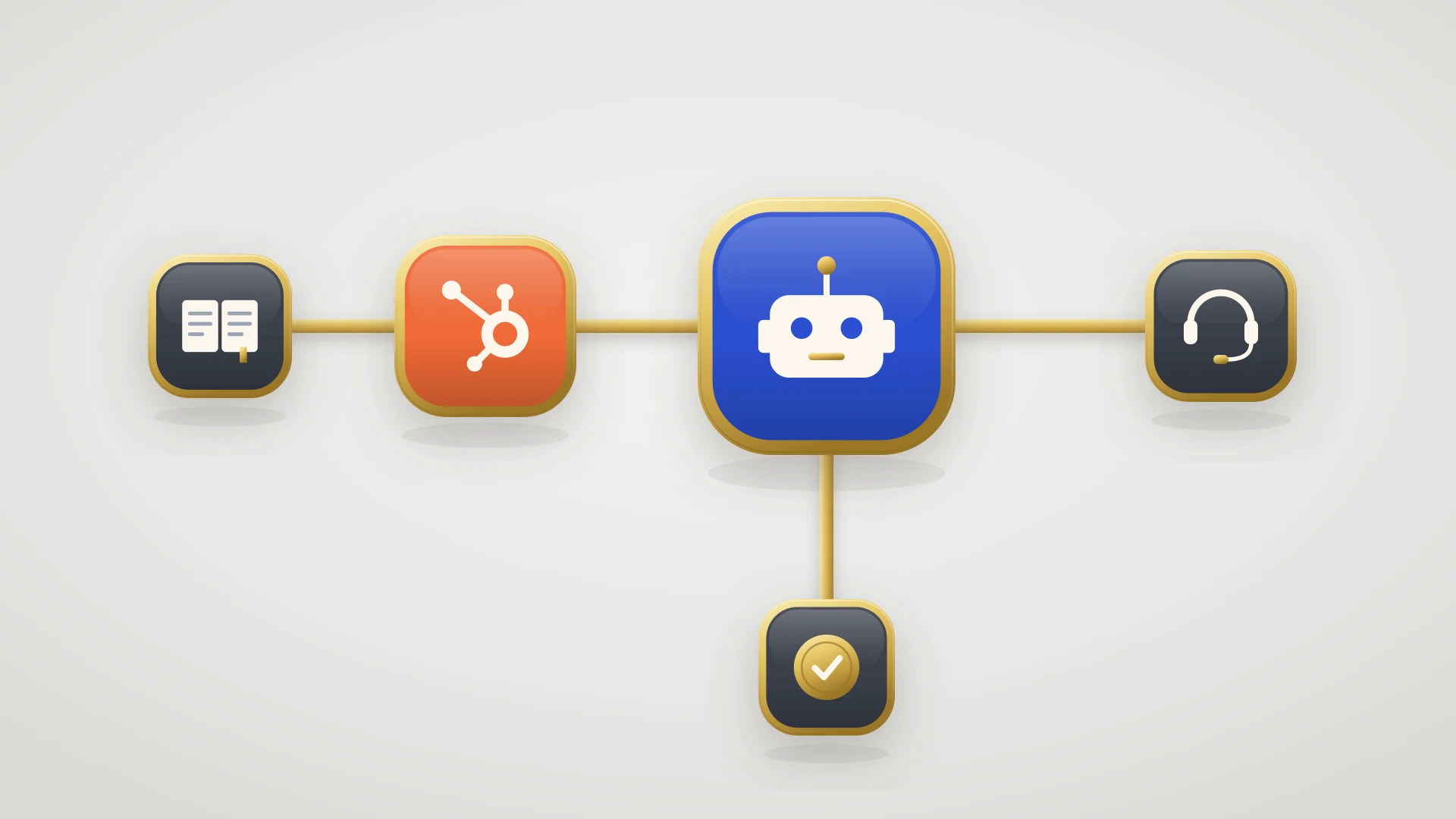
Most of Service Hub's queue management lives there: routing rules, SLA goals, capacity limits, spaces and reply recommendations, and the HubSpot customer agent can hand conversations off to it.
HubSpot Help Desk vs the Conversations Inbox
HubSpot has two places for support messages, and the names cause most of the confusion.
| Conversations inbox | Help desk | |
|---|---|---|
| Built for | Answering messages | Managing tickets |
| Plans | All plans, including free | Service Hub Professional and Enterprise |
| Tickets | Accounts created after April 1, 2024 cannot create tickets from inbox channels | Every message on a connected channel creates a ticket |
| Channels | Team email, chat, Facebook Messenger, forms | Team email, chat, forms, calling, WhatsApp, Messenger, custom |
| Queues and views | Separate inboxes per team, depending on plan | Ticket views, team views, spaces, table, split or board layout |
| SLAs | Set separately in inbox settings | Help desk SLA goals by ticket property |
| Reporting | Conversation reports | Summary and Analyze pages built for tickets |
| Mobile app | Yes | Not yet |
The April 2024 line matters more than it looks. HubSpot's knowledge base says accounts created after April 1, 2024 cannot create tickets from channels connected to the inbox, and points those teams to the help desk instead. If your HubSpot account is newer than that and you want tickets from email or chat, the help desk is the path HubSpot intends.
Stay on the inbox if your team mostly answers questions quickly and does not need queues, SLAs or ticket reporting. Move to the help desk when support work needs to be managed, not just answered.
HubSpot Help Desk Pricing: Which Plan You Need
The help desk is not a separate product with its own price. It comes with Service Hub Professional and Enterprise, priced per seat. HubSpot's pricing guide lists:
| Plan | Per seat per month | Onboarding | Help desk |
|---|---|---|---|
| Free | $0 | None | No, conversations inbox only |
| Starter | From $7, billed annually | None | No, conversations inbox only |
| Professional | $90 billed annually, $100 billed monthly | $1,500 | Yes |
| Enterprise | From $150 | $3,500 | Yes, plus skill-based routing, space views and SLAs on combined properties |
Five agents on Professional billed annually cost 5 x $90 x 12 = $5,400 a year, plus $1,500 onboarding, so $6,900 in the first year. Seat count is the number to watch: HubSpot's knowledge base ties custom views, SLAs, routing rules, capacity limits, spaces and reply recommendations to an assigned Service Seat, so every agent who works the queue needs one. Our HubSpot Service Hub pricing guide covers seats, add-ons and what each tier adds.
HubSpot Help Desk Features
Channels
You connect channels from one Channels settings page. HubSpot's knowledge base lists team email, chat, forms, calling, WhatsApp, Facebook Messenger and custom channels. Help desk tickets can also sync to Slack, Microsoft Teams and Google Chat so your team can work them from there; our Slack ticketing system guide covers what that sync does and does not do.
Views and layouts
Tickets show in views. HubSpot's default views include Unassigned, Assigned to me, My Team's Unassigned, My Team's Open, All Open, My Mentions, Following, All Closed and Sent. You can add custom views, such as all high priority tickets, and pick a table, split or board layout. Users without a Service Seat see only My Mentions, Following and All Open.
Routing
Incoming help desk tickets are unassigned by default. You can triage them by hand from the Unassigned view, or, with a Service Seat, set routing rules per channel: to specific users or teams, to a team only, through an assignment workflow, or to the contact owner with a fallback. Distribution can be load balanced, round robin or random, and by default only available agents receive tickets. Skill-based routing, by language or specialty, needs Service Hub Enterprise.
SLA goals
SLA goals set targets for time to first response, time to next response and time to close. They can apply to all help desk tickets or to tickets with a property, such as Priority is Urgent, and run during all hours or only working hours. HubSpot's own examples include a 30-minute response for urgent tickets and a 15-minute response for chat against 24 hours for email. Goals on a combination of properties, such as Enterprise customers on chat, need Service Hub Enterprise.
Capacity limits and spaces
A capacity limit caps how many open help desk tickets an agent can hold before automatic routing skips them. You can exclude statuses such as Waiting on contact or Waiting on internal, so only tickets an agent is actively working count. Spaces give each team its own area that shows only its tickets; you can create up to 100, and space views need Enterprise.
Reply recommendations
Reply recommendations draft a response in the ticket thread from the content you sync to the customer agent. The rep edits, sends or dismisses it. HubSpot moved their settings into customer agent settings in 2026, and they need a Service Seat.
The right sidebar
The right sidebar shows information about the ticket and its customer. A Super Admin can build team views of it with property list cards (up to 50 properties), association cards (up to five properties of associated records) and app cards from connected apps.
Reporting
The Summary page shows today's open and closed tickets, time to first reply, time to close, CSAT, team availability, SLA progress and tickets by channel and priority. The Analyze page has pre-built reports, such as tickets created and closed over time, first reply average, time to close and time in each pipeline status, filterable by rep, team, channel, pipeline and category. For anything else, the custom report builder can use help desk messages as a data source.
How to Set Up the HubSpot Help Desk
- 1
1. Run the setup flow
In HubSpot, go to Service, then Help Desk, and click Set up help desk. Answer the prompts about your support team, preferred channels, existing tools and default layout, then click Create your help desk. HubSpot creates a test connection for each channel you picked, except calling, WhatsApp and Messenger, plus sample tickets, so you can see how tickets will look. No messages go to customers through the test channels.
- 2
2. Fix the ticket pipeline first
Make sure your ticket pipeline and statuses match how your team works, then set default values for new help desk tickets, such as pipeline, status and priority. Add a status for tickets waiting on engineering now, not after the first bug. Our HubSpot ticket automation guide covers pipelines and the workflows that run on them.
- 3
3. Connect live channels, or move them from the inbox
Connect team email, chat, forms and the rest from the Channels settings page. If you already use the conversations inbox, move those channels instead (see the next section).
- 4
4. Organize teams and views
Group agents into HubSpot teams by how they share tickets, then build views for each team, such as urgent tickets or tickets waiting on engineering. Assign Service Seats to everyone who works the queue.
- 5
5. Add routing, capacity and working hours
Set a routing rule for each channel, pick round robin or load balanced, set capacity limits and agents' working hours, so tickets go only to people who can take them.
- 6
6. Set SLA goals
Start with one goal for all tickets, then add one for urgent tickets. Add more only when you can see in the Summary page which goals your team misses.
- 7
7. Lay out the right sidebar
Add the properties and associated records agents need on every ticket, and the app cards your team uses, such as the card that links a ticket to its engineering issue.
Moving From the Conversations Inbox to the HubSpot Help Desk
A Super Admin can move existing channels from the inbox to help desk. HubSpot's knowledge base lists what to know first:
Which channels move
Chatflows, connected team email, calling and form channels move directly. Fallback email addresses cannot be moved. WhatsApp and Facebook Messenger have to be deleted from the inbox and reconnected to help desk.
History moves only once
You can bring historical conversations and their tickets, but only during the migration. To add them later, you revert the channel to the inbox and migrate it again.
Workflows and notifications fire
Every incoming conversation on a help desk channel creates a ticket, and those tickets can enroll in ticket-based workflows and send assignment notifications. Check your workflow enrollment settings before you move a busy channel.
You can go back
A migration cannot be stopped once it starts, but when it is done you can revert a channel to the inbox.
Moving from another tool rather than the inbox? Our Zendesk to HubSpot migration guide covers what moves and what it costs.
Where the HubSpot Help Desk Stops
The HubSpot help desk is strong at
- One queue for email, chat, forms, calls, WhatsApp and Messenger
- Tickets on the same CRM records as sales and success
- Routing, capacity limits and SLA goals without a separate tool
- Built-in Summary and Analyze reporting
- The customer agent and reply recommendations in the same workspace
The HubSpot help desk falls short on
- It needs Professional or Enterprise, so Free and Starter teams are out
- Advanced features need a Service Seat per agent
- Skill-based routing and combined SLA goals need Enterprise
- Not on the HubSpot mobile app yet
- It cannot see your engineering tracker, so bugs leave the queue blind
If you are still choosing a help desk, our HubSpot Service Hub review and Freshdesk vs HubSpot comparison weigh it against the alternatives.
The Most Expensive Mistake: Closing the Ticket When It Goes to Engineering
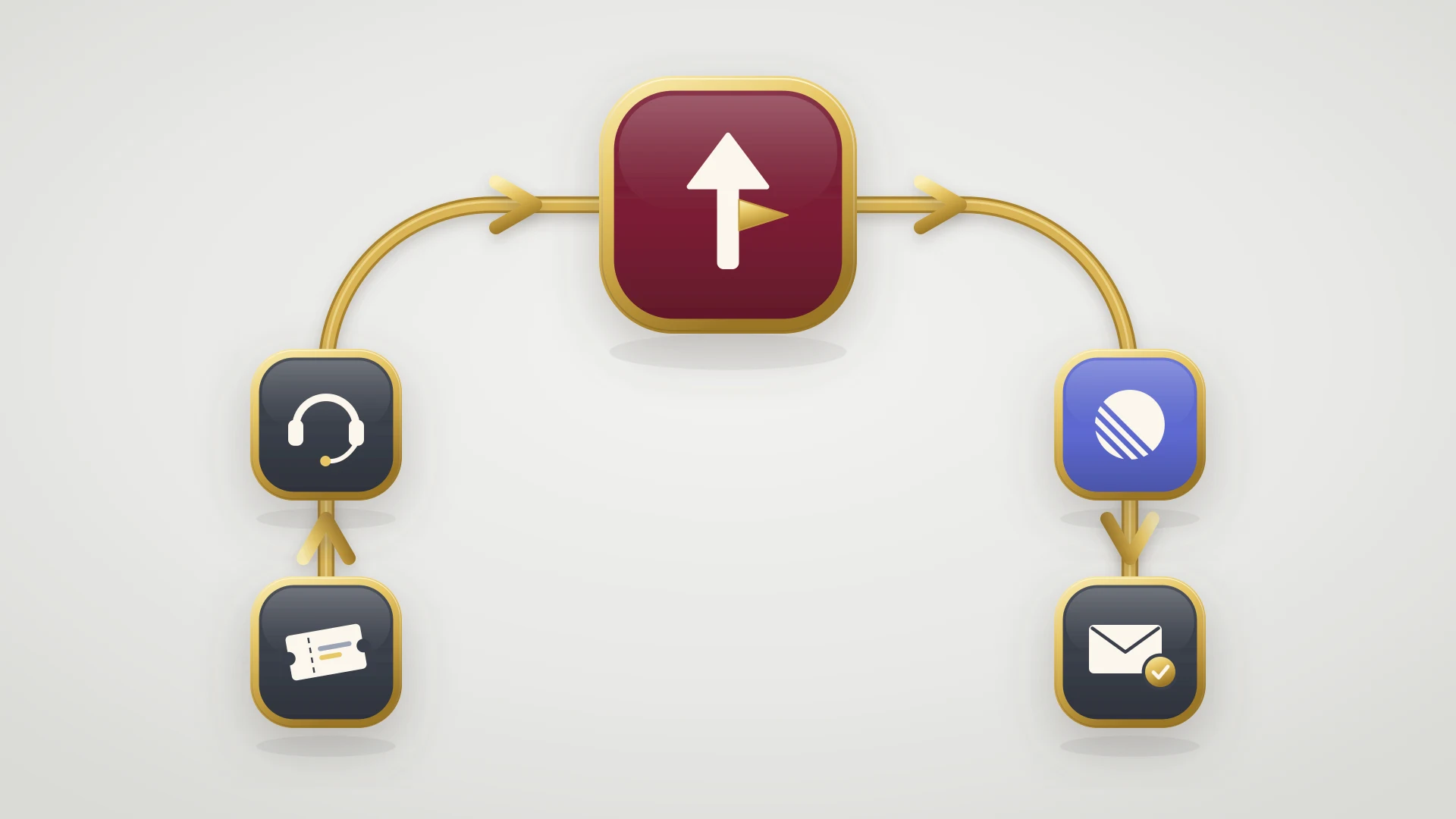
A customer writes in that their invoice export fails. The agent confirms the bug, pastes the details into Linear and closes the ticket, because the queue and the SLA reward closed tickets. The help desk report looks good: first reply in 20 minutes, closed the same day.
Two weeks later the engineer ships the fix and closes the Linear issue. Nobody in support knows. The customer finds out a month later, when they try again, or never.
Three habits prevent it:
Keep the ticket open with its own status
Add a status such as Waiting on engineering to the pipeline, and exclude it from capacity limits so agents are not penalized for it. Build a help desk view of those tickets.
Link the ticket to the engineering issue
A pasted message is a copy that goes stale. A linked issue carries its status back to the ticket. Our bug report guide covers what engineering needs in it.
Tell the customer when it ships
The fix is the moment to reply, not the handoff. Our customer feedback loop guide covers the return trip, and our escalation management guide covers urgent bugs.
From the HubSpot Help Desk to Linear
If your engineers work in Linear, IssueLinker connects the two. It is a HubSpot Marketplace app, and its card works in the help desk ticket sidebar as well as on the ticket record:
Create or link the Linear issue from the help desk
The IssueLinker card in the help desk sidebar creates a Linear issue pre-filled from the ticket, optionally drafted by AI from the conversation, or links an existing one. A Super Admin manages where its cards show from Settings, Integrations, Connected apps, in the app's App cards tab.
Comments both ways
Notes on the ticket and comments on the issue sync in both directions with loop prevention, and edits and deletes follow them, so the agent and the engineer read the same thread.
The fix shows up on the ticket
The Linear status is written to properties on the HubSpot ticket, including Linear Issue Status Type, which reads triage, backlog, unstarted, started, completed or canceled. Optional status emails tell the ticket owner, the ticket creator or both when the issue is done.
Because the status is a ticket property, you can use it like any other in HubSpot: filter a help desk view to tickets whose issue is completed, so agents see which customers to tell, or trigger a workflow on it. It is written to a property, not to the ticket stage; the stage moves only if you turn on a status rule. Our Linear HubSpot integration guide compares every way to connect the two tools.
See the Linear fix in your HubSpot help desk
IssueLinker creates the Linear issue from the help desk ticket, syncs comments both ways and writes the issue status back to the ticket. $39 per month flat, unlimited users, any HubSpot plan, 14-day free trial.
Should You Move to the HubSpot Help Desk?
You already pay for it. Routing, SLA goals and ticket reporting come with your plan, and the inbox cannot create tickets in newer accounts.
Upgrade when you need queues, SLAs or reporting, not before. Budget for seats and the $1,500 onboarding fee when you do.
Skill-based routing, space views and SLA goals on combined properties are Enterprise features.
Who This Guide and IssueLinker Are Not For
This guide covers HubSpot's help desk workspace. If you are comparing help desks from scratch, our best customer support software for B2B guide covers the wider market.
IssueLinker is for teams that run support on HubSpot Service Hub and build in Linear, Jira or GitHub. It is not for teams whose support runs on Zendesk, Intercom or Front, since Linear connects to those natively, and it does not sync deals, contacts or custom fields between tools. It works on any HubSpot plan; you do not need the help desk to use it, because the card also shows on the ticket record.